📒 Guide to using the Attendance module in Campus
This guide explains how a teacher can manage student attendance in Campus: create sessions, take attendance, and review reports.
✅ The technical part is already configured by the administration, here you'll only see what's necessary for your daily routine.
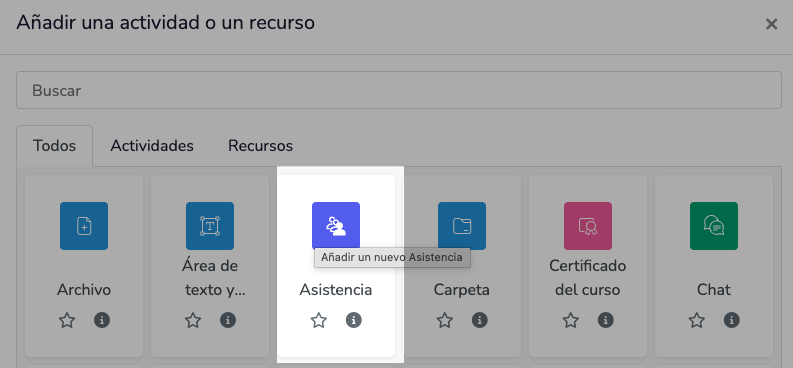
1️⃣ Access the attendance activity
- Enter your course within Campus.
- Locate the activity called Attendance.
- Click on it to open the menu with Sessions, Report, and Marking Options.
2️⃣ Create class sessions
Sessions represent your classes or meetings.
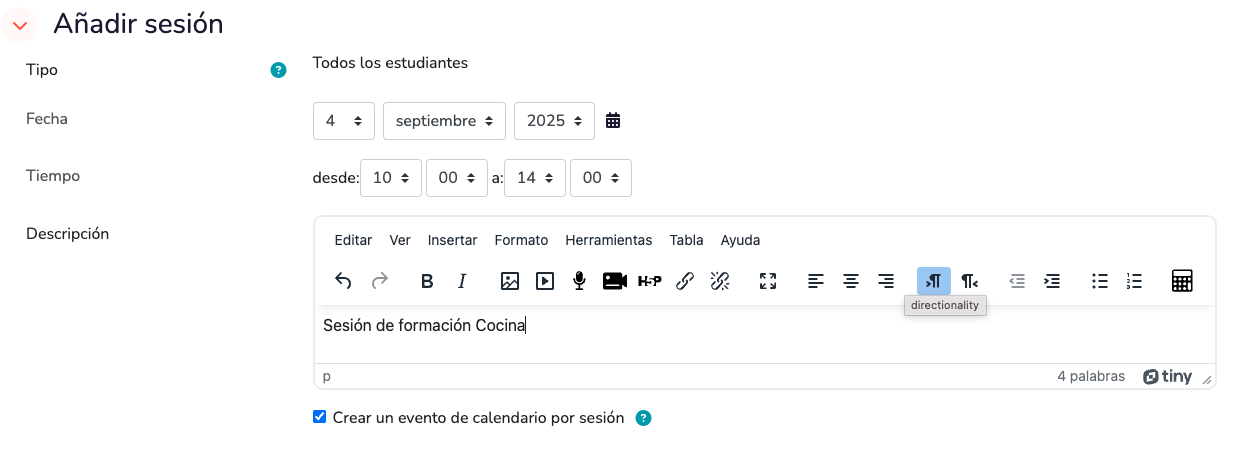
- Within the activity, go to Sessions → Add session.
- Indicate:
- 📅 Date and time of start and end.
- 🔁 Repetition (example: every Monday at 10:00).
- 👥 Groups (if you work with student groups).
- Save and the session will be scheduled.
3️⃣ Take attendance in class
You have two ways to do it:
🖊️ 3.1 Manual marking
- Enter the created session.
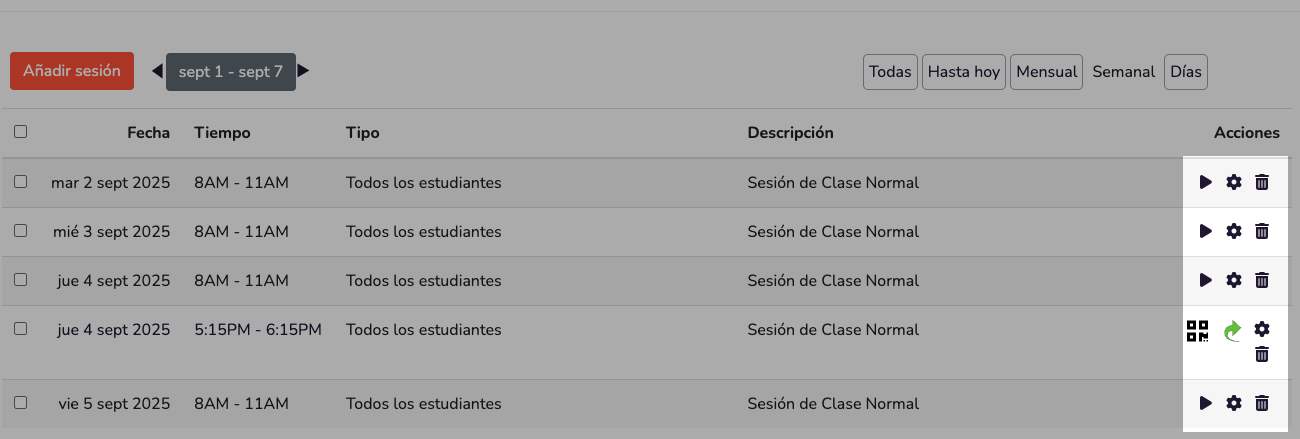
- You will see the student list.
- Mark each student as:
- ✅ Present
- 🕒 Late
- 🚫 Excused Absence
- 💻 Unexcused Absence

- Save when finished.
📱 3.2 Student self-marking
- Activate the self-registration option in the session.
- Students can mark their attendance using:
- 🔑 A password you give in class.
- 📸 A QR code they scan from their mobile.
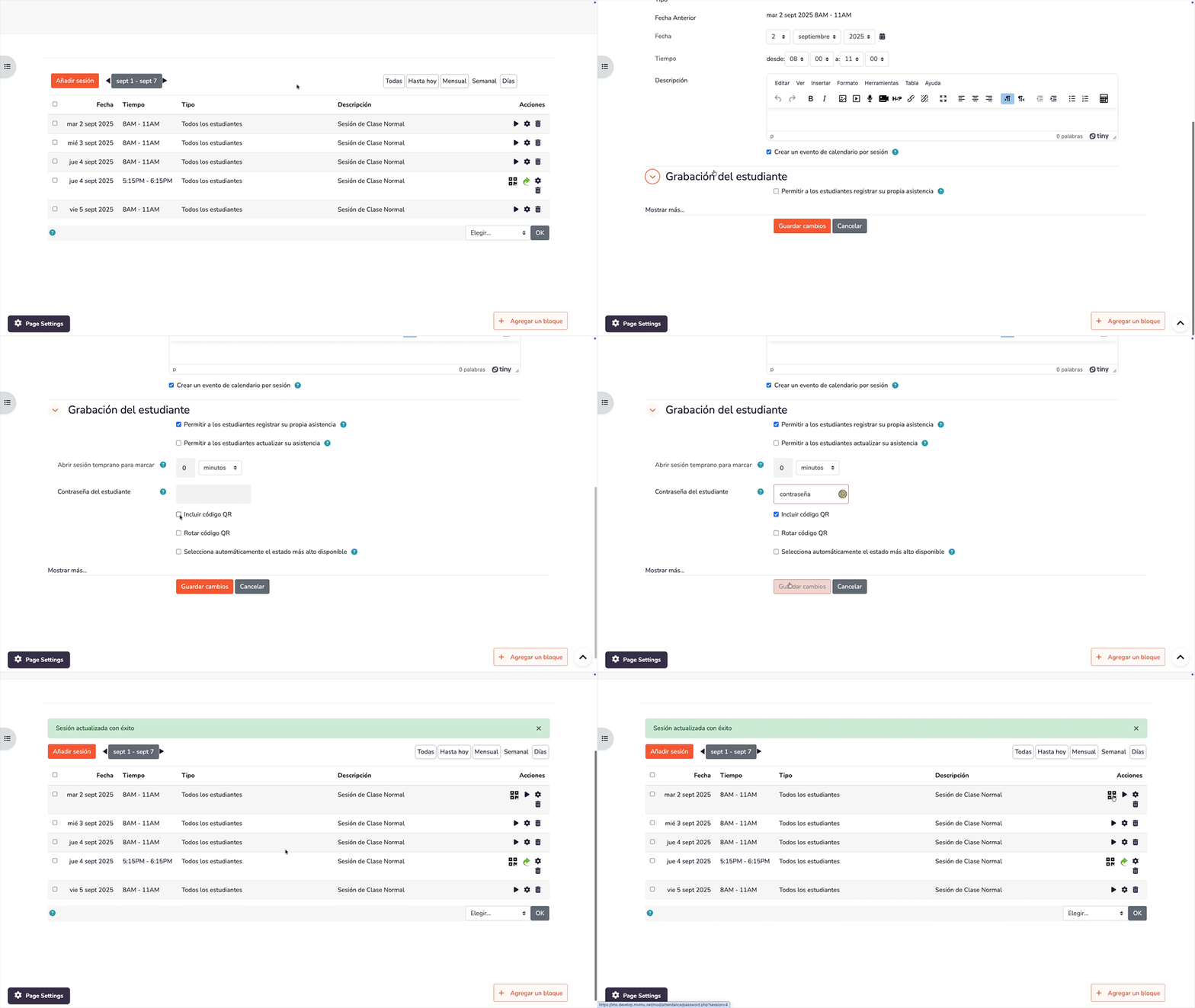
👉 You decide whether to do it manually or automatically depending on the group and situation.
4️⃣ Consult reports
- Go to the Report tab within the activity.
- You can see:
- 📊 By student → attendance summary and percentage.
- 📆 By session → who attended each class.
- Export data in Excel or CSV if you need to take them out of Campus.
5️⃣ Best practices
- ✨ Create all course sessions at the beginning, you'll save work.
- ⏱️ Use self-registration with QR for large classes (fast and no queues).
- 👀 Review reports to detect recurrent absences.
- 📂 Save your exports if you need to justify them later.
🎯 In summary
- Access Attendance in Campus.
- Create sessions 📅.
- Take attendance 🖊️ or let students mark themselves 📱.
- Consult and export reports 📊.
And that's it! Your attendance control will always be organized.